
Table of Contents
- Who reads a background check?
- Background check report statuses—what each one means
- Complete vs. clear: what’s the difference?
- What's inside a background check report: section by section
- For candidates: how to read your own background check
- Background check glossary
- Understanding your background check is just the start
- FAQs
Ready to run background checks the modern way?
Who reads a background check?
Employers and candidates are the two primary audiences for a background check report. Employers use reports to make hiring decisions, while candidates review them to confirm accuracy and understand where they are in the screening process.
On the employer side, a hiring manager, recruiter, or HR representative usually reviews the completed report. If there is no relevant negative information, they can continue with the hiring process. If the report shows potentially negative information, the employer follows its adjudication process to decide the next steps.
Candidates can also review their background check reports. They can double-check that all information is accurate and have the right to dispute any inaccuracies.
Type of screening | Average turnaround time |
Employment background check (a more comprehensive report that typically includes multiple screenings) | >1 hour to 1–5 days |
Criminal background check | 1–3 days |
Employment verification | 1–3 minutes (quick verification) to 2–7 days (manual entry) |
Reference checks | 2–5 days |
Driving record (MVR) check | >1 hour to 1–3 business days |
Drug testing | 10 minutes (onsite) to 3–10 days (lab-based) |
Background check report statuses—what each one means
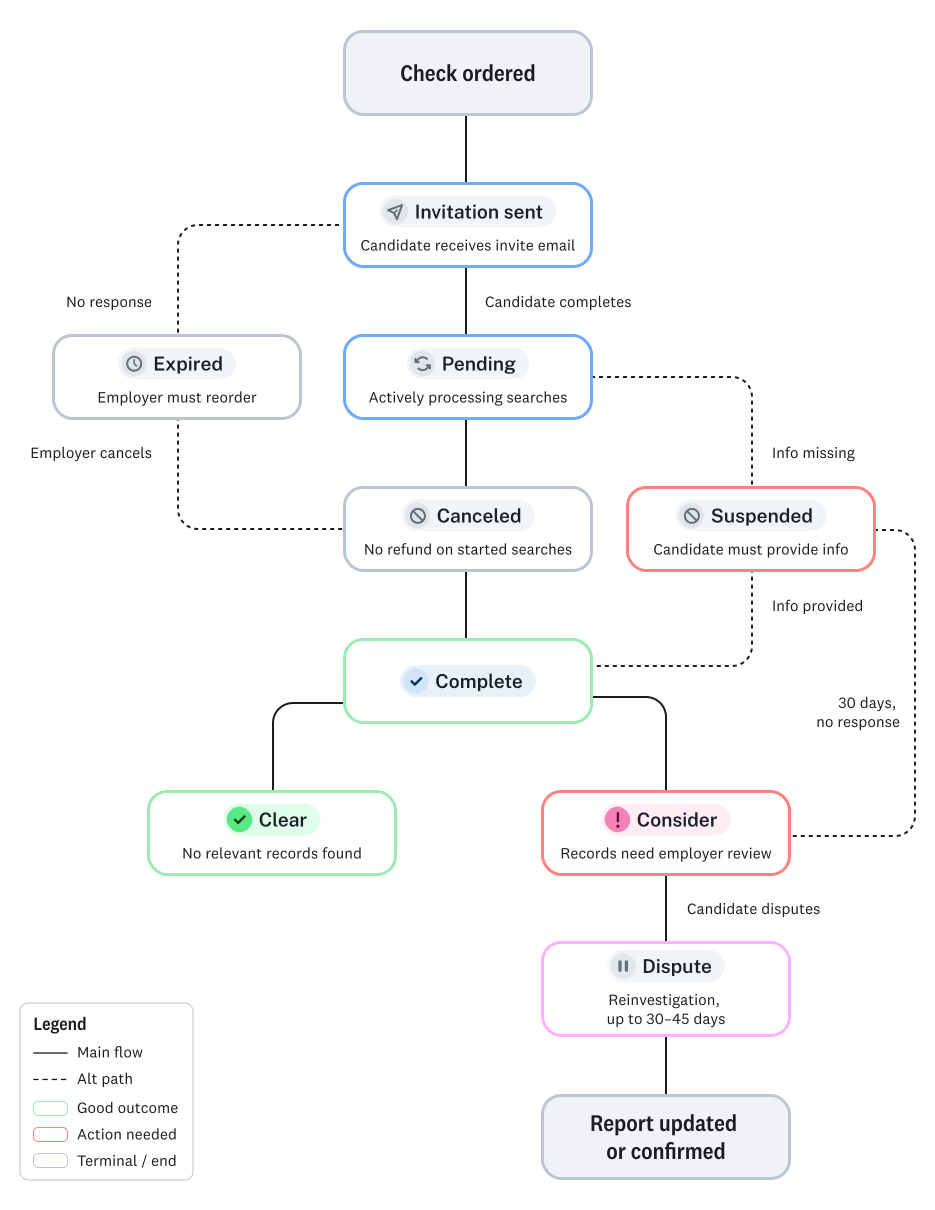
A background check report status shows the current state of the screening process. Both employment and personal background checks have these statuses. Understanding what they mean helps you know when it’s time to act on a background check and when to wait.
The exact statuses you see depend on the report, the searches ordered, and whether any candidate action or employer review is needed. Some reports move quickly from invitation to final status, while others may pause if information is missing or results require review. As a result, a background check may not go through every possible status. In fact, you'll likely only see a few.
Here are the statuses you may see in the Checkr dashboard:
Invitation sent
Invitation Sent means Checkr sent the candidate an invitation link to start the background check process, but the candidate hasn’t completed the required steps yet. The screening can’t begin until the candidate enters their personally identifying information (PII) and provides consent.
For employers, this status is a sign to follow up with the candidate and encourage them to complete the invitation. The report hasn’t officially started, so delays at this stage may affect the hiring timeline.
For candidates, this status means Checkr is waiting for you to take action. Confirm that you’ve completed all required steps and provided the necessary information and documentation in the Candidate Portal.
Invitation expired
Invitation Expired means the candidate didn’t respond to the invitation link within the allotted time. The default invitation window is seven days, but employers can contact Checkr Support to customize it.
For employers, this status means you’ll need to order a new report and send a new invitation, using the employer dashboard. It’s a good idea to contact the candidate first to confirm they’re still interested, so you don’t spend time restarting a background check they no longer plan to complete.
For candidates, this status means the original invitation link is no longer active. Contact the employer and ask them to send a new invitation.
Pending
Pending means the report has started processing, and the searches included in the background check package are actively running. No action from the candidate or employer is usually required while a background check is in this status.
For employers, Pending means the report isn’t ready to review yet. Wait for the next status update before making a hiring decision based on the background check.
For candidates, Pending means Checkr is still working on the report. You typically don’t need to do anything unless Checkr contacts you for more information.
Suspended
Suspended means the report has stopped processing because information is missing, or a search couldn’t be completed. For example, some states require additional information before certain criminal background checks can continue.
For employers, this status usually means you need to wait while Checkr contacts the candidate for the missing information. If the candidate doesn’t provide the necessary details, the related screening may be canceled after a period of time, and the rest of the report may continue. Contacting the candidate directly and asking them to follow up with Checkr may reduce the wait.
For candidates, this status means Checkr needs more information from you before any part or all of the report can continue. Check the Candidate Portal for details and submit the requested information as soon as possible.
Canceled
Canceled typically means the candidate contacted Checkr to withdraw consent for the background check. This status is rare and typically occurs when a candidate no longer wants to continue in the hiring process.
For employers, this status means the report won’t continue. Consider following up with the candidate to confirm whether they’re still interested in the role. If they are, order a new background check via the Employer Dashboard.
For candidates, this status means your consent was withdrawn, and the background check has stopped. If you’re still interested in the position, contact the employer and ask whether they can send another invitation.
Clear
Clear means the background check is complete, and the background check searches ordered didn't return information that the employer defined as necessary to evaluate a candidate's suitability for the role.
Clear does not mean that no results were found. It simply means that no relevant records were located. For example, if an employer used Checkr’s adjudication tools and indicated that misdemeanor records older than 20 years weren't relevant to the position, the report will show a Clear status even if the search returned those records.
For employers, Clear means the report is complete and doesn’t require additional review under your adjudication guidelines. You can move forward according to your hiring policy.
For candidates, Clear generally means the background check is complete and returns no relevant adverse information. It doesn’t always mean the report found nothing at all, but it does mean there are no results of concern that require employer evaluation under the employer's policies. At this point, you just need to wait for the employer to make their final hiring decision.
Consider
Consider means the report is complete and contains information the employer may need to review, such as criminal convictions that may be relevant to the position.
For employers, this status means you should review the report in accordance with your hiring policy and adjudication guidelines. Depending on your policy, the role, and the nature of the information, you may decide to continue the hiring process or initiate an adverse action process.
For candidates, Consider doesn’t mean you’ve been rejected. It means the employer may review information in your report before making a final hiring decision. You don’t need to take further action with Checkr, but you can contact the employer if you have questions about their review process. If the employer decides not to move forward because of information in the report, you’ll have a chance to review and dispute inaccurate or incomplete information.
Dispute
Dispute means the candidate contacted Checkr to dispute information in their completed report that they believe to be inaccurate or outdated. Once Checkr investigates the dispute, the employer and the candidate will be notified.
For employers that began the adverse action process using Checkr’s built-in workflow, the adverse action steps are automatically canceled when a dispute is initiated. Wait for a response from Checkr and then consider next steps.
If you're the candidate seeing this status, your dispute is under investigation. No further action is necessary until you hear from Checkr.
Complete vs. clear: what’s the difference?
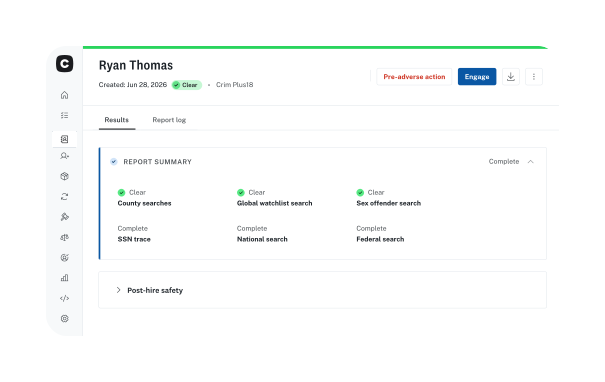
Complete means an individual search has finished running, such as “SSN Trace: Complete.” Clear means the overall report returned no information that the employer needs to review under its adjudication guidelines. A report can show individual searches as Complete while the overall report status is Consider.
Ready to start screening candidates?
Get accurate, easy-to-read background check results: most criminal checks complete in under an hour.
What's inside a background check report: section by section
When viewing a candidate’s report in the Checkr Dashboard, it’s helpful to understand the various components. These include:
Candidate information
Report information
Background report
Criminal report
Health screening appointment
Post-hire safety
Actions
The Candidate Information section includes personally identifiable information, or PII, such as the candidate’s name, date of birth, Social Security number, and contact information. It may also show Geo, which indicates the state where the candidate will work, and ZIP code, which refers to where the candidate lives.
This section provides high-level details about the background check, including the screening package ordered and the start and completion dates and times of the report. Here, employers can download a PDF copy of the completed report for their records.
This section shows which searches were conducted as part of the background check package. Some searches, including SSN Trace and National Search, are considered pointer searches, meaning they guide additional searches but don’t return records themselves.
For example, pointer searches may lead Checkr to conduct county, state, or federal searches. They may also help determine whether other searches, such as Sex Offender Registry or Global Watchlist searches, are needed based on the package ordered.
When a report returns criminal records, employers can click into each record for more information. These details typically include the case number, jurisdiction, charge type, offense date, disposition, and disposition date. A disposition is the final legal resolution of a case, such as a conviction, dismissal, or deferred judgment.
Criminal record language can vary by jurisdiction. One county may use “driving while impaired,” while another may use “driving under the influence” or “driving while intoxicated” for similar offenses. Checkr’s Charge Classifier translates raw legal language into plain English, helping employers review reports more efficiently. Checkr’s Assess adjudication tool can also reduce manual review time by 70%.
This section displays information related to drug testing or health screenings, if conducted. It typically shows the candidate’s appointment details and status.
This section reflects whether an employer enabled Continuous Checks. When enabled, Checkr will periodically run selected screenings, such as criminal record or MVR checks.
If information in a report may affect a hiring decision, the Actions section lets employers begin the adverse action process directly in the Checkr dashboard. Checkr’s built-in workflow sends the pre-adverse action notice, a copy of the background check report, and other required documents in one step.
This section also includes Candidate Stories, which allow candidates to share additional context about their records, prior circumstances, or steps toward rehabilitation. That added context can help employers make more informed, individualized decisions.
See Checkr in action
From report statuses to built-in adverse action workflows, get everything you need to hire faster and more confidently.
For candidates: how to read your own background check
Background check reports aren't just for employers. If you're a candidate waiting on screening results, here's how to navigate your report, understand what each status means, and take action if something doesn't look right.
- Start in the Checkr candidate portal. You can access your report, track its status, and view updates in the Candidate Portal. The portal is mobile-friendly, so that you can check in from your phone.
- Check the report status first. Statuses such as Pending, Clear, Consider, and Dispute indicate where your report is in the process. Clear generally means there are no relevant results for the employer to review, while Consider means the employer may need to review information before making a final decision.
- Remember that Consider is not a rejection. A Consider status means the report contains information that the employer may review. It doesn’t mean you’re automatically disqualified from the role.
- Review your personal information for accuracy. Check details such as your name, date of birth, Social Security number, ZIP code, and Geo. Geo refers to the state where you’ll work, which may affect how location-specific screening rules apply.
- Look closely at any records listed. Review the case number, jurisdiction, charge type, disposition, and disposition date. If something looks inaccurate, outdated, or incomplete, you have the right to dispute it.
- Use the dispute process if something looks wrong. You can start a dispute through Checkr if you believe information in your report is inaccurate. Checkr will investigate and notify you when the review is complete.
- Look for support in your preferred language. Checkr offers multilingual support to help candidates understand their report and complete the next steps.
Background check glossary
Here are some commonly used terms related to background checks and their definitions.
Commonly used background check terms & definitions
Disposition | The final legal resolution of a case, such as a conviction, dismissal, or deferment |
SSN Trace | Identifies address history to guide additional searches; does not verify identity |
Adverse Action | The process an employer follows before declining a candidate based on background check results |
Adjudication | The process of evaluating whether records are relevant to a specific role |
Pointer Search | A search that guides further searches but doesn't return records itself, such as an SSN trace or national search |
Clear | Status that means a report is complete with no relevant findings, though it may still contain records that didn't meet adjudication criteria) |
Consider | Status that means a report is complete with records that may warrant review |
Continuous Check | Ongoing post-hire monitoring for new criminal records or MVR changes |
GEO / Geo | The state where the candidate will work, used to apply location-specific adjudication rules |
Understanding your background check is just the start
Whether you're an employer reviewing a candidate's report or a candidate tracking your own screening, clarity at every stage makes the process faster and less stressful for everyone involved.
Checkr is designed to make that clarity the default—with easy-to-read reports, plain-language charge descriptions, built-in adjudication tools, and a candidate portal that keeps candidates informed throughout. When the process is transparent on both sides, hiring moves faster and decisions are easier to stand behind.
FAQs
Learn more about how to read a background check report by reviewing the answers to these frequently asked questions.
What is the difference between Clear and Complete on a background check?
The difference between Clear and Complete comes down to results. Clear means that a search didn’t yield relevant negative information. Complete means the screening has finished running. A pointer screening used to determine what other checks may be necessary will typically show Complete instead of Clear.
What does it mean when a background check says Consider?
When a background check says Consider, it means it contains relevant information that an employer should review before making a hiring decision. It doesn’t mean a candidate should be disqualified automatically.
How long does a background check take?
A background check typically takes three to five days. However, some reports may be available sooner or later, depending on whether additional information is needed. For example, 89% of Checkr’s criminal checks are complete in one hour.
Can a candidate see their own background check report?
Yes, a candidate can typically see their own background check report once it’s complete. On Checkr’s candidate platform, reports remain visible for 12 months.
What happens if a candidate disputes their background check?
If a candidate disputes a background check, Checkr will pause the adverse action process and change the report status to Dispute. In compliance with the Fair Credit Reporting Act (FCRA), Checkr typically has 30 days to complete a reinvestigation. However, if documentation is provided to supplement the dispute, the process may take up to 45 days.
What does "Geo" mean on a Checkr report?
On a background check report, Geo refers to the geographic location where the candidate will work, if hired. Geo is important because employment screening rules can vary by location. For employers, this field helps apply the right location-specific adjudication rules when reviewing background check results.
What is a disposition on a background check?
On a background check, a disposition is the final resolution of a criminal case. Examples include conviction or dismissal.
What is the difference between a pointer search and a record-returning search?
The difference between a pointer search and a record-returning search comes down to purpose and results. A pointer search identifies what other screenings may be necessary. A record-returning search looks directly for reportable records from a specific source, such as a county, state, or federal court.
Disclaimer
The resources and information provided here are for educational and informational purposes only and do not constitute legal advice. Always consult your own counsel for up-to-date legal advice and guidance related to your practices, needs, and compliance with applicable laws.

About the author
Hayley Harrison began her career as a hiring manager at a mid-size regional bank in the Pittsburgh area. She now brings her experience and knowledge of hiring best practices to her work as a freelancer, helping employers refine and improve their processes.